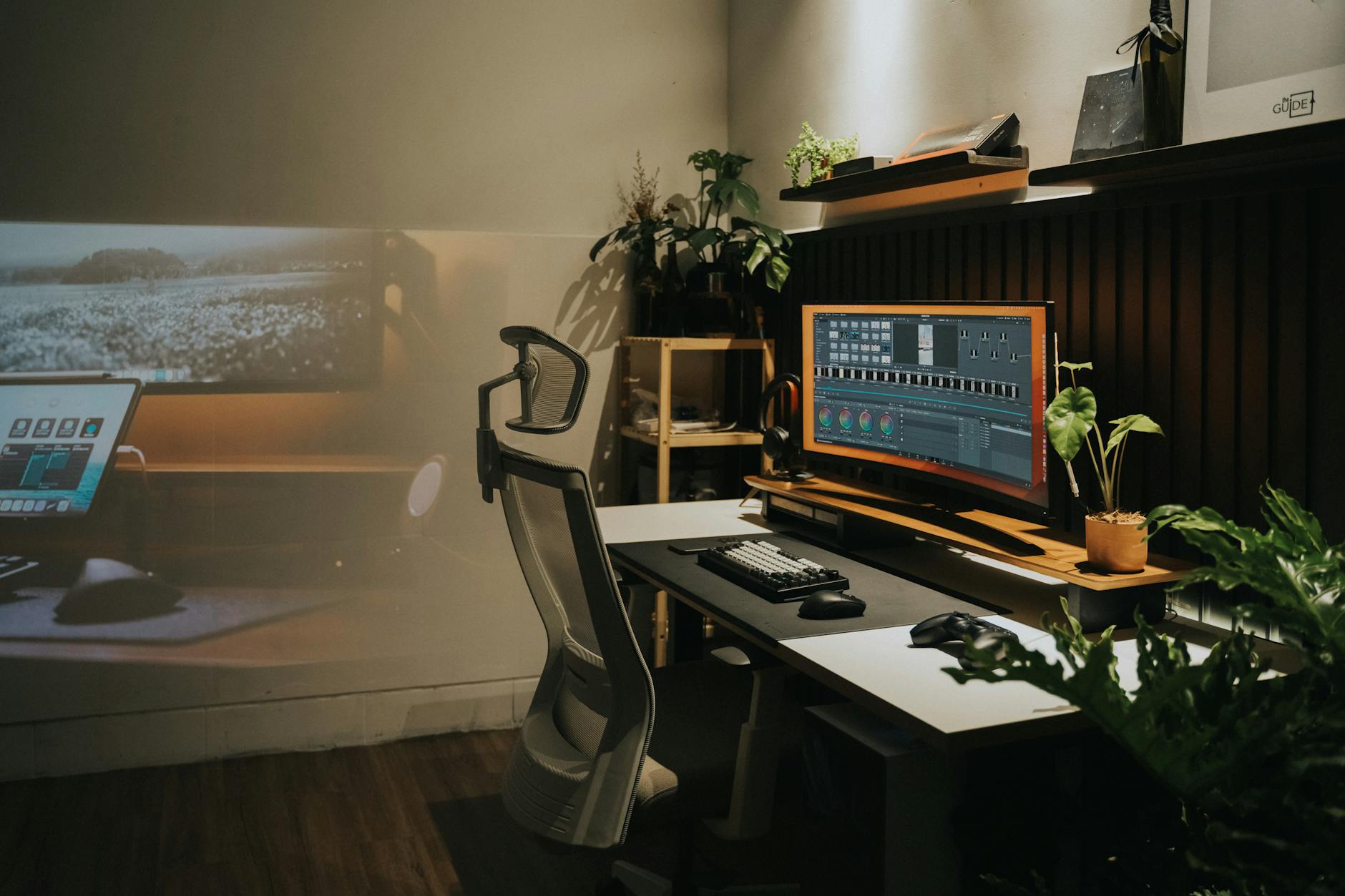
Why Ergonomic Keyboard Matters: Expert Insights
Why Ergonomic Keyboard Matters: Expert Insights
Your hands have typed roughly 40 million keystrokes by the time you hit 40 years old — and most of those keystrokes were made on a keyboard that was never designed with your body in mind. That flat, rectangular slab sitting in front of your monitor right now? It was largely based on the layout of a 19th-century typewriter. Your wrists, shoulders, and spine have been quietly paying the price ever since.
If you have ever finished a long workday with tight forearms, a dull ache behind your wrists, or that persistent stiffness crawling up your neck, you already know something is wrong. You probably blamed stress, aging, or posture. Rarely does anyone point the finger at the keyboard — yet that is often exactly where the problem starts and where the fix begins.
This article breaks down why ergonomic keyboards matter, how they interact with the rest of your workstation setup, and what practical steps you can take right now to work smarter, not more painfully.
The Real Cost of an Uncomfortable Workstation
Before diving into keyboards specifically, it helps to understand the broader picture. Musculoskeletal disorders — injuries affecting muscles, nerves, tendons, and joints — account for one-third of all workplace injuries in the United States, according to the Bureau of Labor Statistics. The majority of those injuries happen in office settings, not on construction sites.
The culprit is repetitive strain. Unlike a single traumatic injury, repetitive strain accumulates slowly. You feel fine on Monday. By Thursday afternoon something aches. Six months later, you are searching for a physical therapist. By then, the damage has compounded across thousands of micro-traumas that your body absorbed without complaint — until it could not.
The keyboard sits at the center of this problem because it is where most office workers spend the bulk of their active time. Your mouse matters. Your monitor arm position matters. Your ergonomic chair matters enormously. But if your keyboard forces your wrists into unnatural angles for six to eight hours a day, everything else is working against a structural disadvantage.
What Makes a Keyboard “Ergonomic”?
The term gets thrown around loosely in product marketing, so it is worth being precise. An ergonomic keyboard is designed to reduce the physical stress placed on your hands, wrists, and forearms during typing. This is typically achieved through one or more of the following design principles.
Split Design
A split keyboard divides the key layout into two halves, allowing each hand to type in a position that aligns with the natural angle of your arms. Standard keyboards force your hands inward — a position called ulnar deviation — which places chronic stress on the tendons that run through your wrist. Split keyboards eliminate that forced angle entirely. Some models are fully separate, so you can position each half independently. Others are fixed with a built-in angle between the two sections.
Tenting
Tenting refers to raising the center of the keyboard so your hands rest in a more handshake-like position, thumbs-up rather than palms-flat. Most standard keyboards rest completely flat, which forces your forearms into full pronation. Sustained pronation is one of the leading contributors to forearm fatigue and conditions like pronator teres syndrome. Even moderate tenting — as little as 15 degrees — measurably reduces muscle activation in the forearm.
Negative Tilt
Conventional keyboard wisdom says you should tilt your keyboard away from you using the built-in feet. Modern ergonomics says the opposite. Tilting the keyboard slightly downward — away from you, front higher than back — encourages a neutral wrist position and reduces the wrist extension that leads to carpal tunnel aggravation. This one change alone surprises many people with how quickly it reduces discomfort.
Key Actuation and Travel
How hard you press and how far each key travels matters more than most people realize. Keyboards requiring excessive force cause finger and forearm fatigue. Very shallow travel distances, common in ultra-thin laptop-style keyboards, cause fingers to bottom out with each keystroke, creating repetitive impact stress. Ergonomic mechanical keyboards often use switches calibrated for light actuation with satisfying feedback, reducing the force your fingers exert over a full workday.
The Wrist Rest Question: Help or Hindrance?
Few accessories generate more debate in ergonomics circles than the wrist rest. Used correctly, a wrist rest is genuinely useful. Used incorrectly — which is how most people use it — it makes things worse.
The critical distinction is this: a wrist rest is for pausing, not for typing. When you rest your wrists on a pad while actively striking keys, you compress the carpal tunnel and reduce blood flow to the median nerve. The pad feels comfortable in the moment, but it is actually creating the pressure conditions associated with carpal tunnel syndrome.
The correct technique is to use the wrist rest as a resting point between bursts of typing — the way a pianist lifts their wrists off the keys while playing and rests between pieces. Your wrists should float slightly above the keyboard surface while your fingers are moving. When you pause to think, read the screen, or wait for a file to load, lower your wrists onto the rest.
Material matters too. Gel-filled wrist rests distribute pressure more evenly than firm foam. Memory foam conforms to individual hand shapes but can retain heat. Hard plastic rests, which often come bundled with budget keyboards, provide almost no benefit and should be avoided.
How Your Keyboard Connects to Back Pain Relief
Here is something that surprises people: keyboard position directly affects your spine. The connection runs through a simple biomechanical chain.
If your keyboard is too far from your body, you reach forward to type. Reaching forward rounds your shoulders. Rounded shoulders pull your thoracic spine into flexion. That flexion cascades down into your lumbar spine. Within an hour, you are slouching into the chair, your lower back is compressed, and no amount of lumbar support from your ergonomic chair can fully compensate for the postural collapse that started at your fingertips.
Proper keyboard placement — close to your body, at or just below elbow height, with your elbows bent at approximately 90 degrees — allows your shoulders to sit naturally, your spine to maintain its natural curves, and your core to engage passively without effort. This is one of the most underappreciated pathways to genuine back pain relief: fixing upstream problems at the hands and arms before they cascade into spinal dysfunction.
This is also why the relationship between your keyboard and your standing desk setup deserves careful attention. When you transition from sitting to standing at a standing desk, the keyboard height needs to follow. Many people adjust their desk height correctly but forget that the keyboard position has shifted relative to their elbows. Standing with a keyboard set too low causes the same shoulder rounding and spinal flexion that sitting poorly does — just in a different position.
Building the Complete Ergonomic Workstation
A great ergonomic keyboard does not exist in isolation. It works best as part of a system where every component supports the others. Here is how the key pieces interact.
Ergonomic Chair: The Foundation
Your ergonomic chair sets the baseline for everything above it. Seat height determines your elbow height, which determines your keyboard height. If your chair is too low or too high, your keyboard position becomes a compromise rather than a solution. A proper ergonomic chair allows seat height adjustment, lumbar support positioning, and armrest height calibration. Armrests, when used correctly, reduce the load on your shoulders and trapezius muscles — the muscles that most commonly become tight in desk workers. Set armrests just below your elbows so your arms can rest lightly without your shoulders rising to compensate.
Standing Desk: Changing the Equation
A standing desk — particularly a height-adjustable sit-stand desk — addresses one of the core problems of modern office work: sustained static posture. Sitting for prolonged periods is genuinely hard on the lumbar spine, the hip flexors, and the cardiovascular system. But standing all day creates its own problems, particularly for the lower limbs and lower back. The sweet spot is alternation: roughly 30 to 45 minutes sitting, 15 to 20 minutes standing, cycling throughout the day. When transitioning to standing, reset your keyboard height, verify your monitor height has adjusted with your monitor arm, and recheck your shoulder and wrist positions before settling back into work.
Monitor Arm: Eye Line and Neck Strain
A monitor arm is one of those investments that seems unnecessary until you use one. Standard monitor stands lock your screen into a fixed position that may or may not match your sitting height, standing height, or the distance your eyes need for comfortable focus. A monitor arm allows full adjustment — height, depth, and tilt — so your eye line falls naturally at or just below the top of the screen. This keeps your neck in a neutral position rather than the forward-head posture that develops when you peer slightly down or up at a fixed screen. For ergonomic keyboard users who also stand for part of the day, a monitor arm is not optional — it is essential for maintaining consistent visual ergonomics across posture changes.
Wrist Rest: The Detail That Completes It
Positioned correctly alongside a well-chosen ergonomic keyboard, a quality wrist rest becomes the finishing touch on a workstation that genuinely supports your body throughout the day. Choose one that matches the height of your keyboard’s key surface — not taller, which forces wrist extension, and not shorter, which defeats its purpose. Width matters too: a full-length rest that spans the keyboard width gives both hands consistent support during pauses.
Practical Steps: Making the Transition Without the Pain
Switching to an ergonomic keyboard is rarely something the body appreciates overnight. Even when the design is objectively better, your muscles and movement patterns have spent years adapting to a standard layout. The key is to transition gradually. Start by using the new keyboard for one or two hours a day, then increase that time over the course of a week or two. This gives your hands, wrists and shoulders time to adjust without creating fresh strain.
It also helps to review your overall setup rather than treating the keyboard as a standalone fix. Your elbows should rest at roughly a 90-degree angle, shoulders relaxed, and the keyboard positioned close enough that you are not reaching forward. If your chair is too low, your wrists may still bend upwards; if your monitor is poorly placed, you may tense your neck and shoulders without realising it. Ergonomics works best when each part of the workstation supports the others.
Another overlooked factor is technique. Even the best ergonomic keyboard cannot fully compensate for heavy typing force, hovering shoulders or poor posture. Aim to type lightly, keep your wrists neutral instead of planted rigidly on the desk, and take short movement breaks throughout the day. A brief stretch, a walk to refill water, or simply opening and closing your hands can reduce the cumulative load that builds over long sessions.
For those already experiencing discomfort, expert advice is especially valuable. Persistent pain, tingling or numbness should not be ignored. While an ergonomic keyboard may help reduce aggravation, it is sensible to consult a qualified health professional if symptoms continue. Early action often prevents minor strain from becoming a longer-term issue.
Ultimately, understanding why an ergonomic keyboard matters comes down to a simple principle: the tools you use every day shape how your body feels every day. A keyboard that encourages natural hand positioning, reduces unnecessary reach and supports healthier posture can make a meaningful difference to comfort, productivity and long-term wellbeing. In a world where so much work happens through our hands, investing in better ergonomics is not a luxury — it is a practical step towards working more sustainably.