
Back Pain Relief Tips Every Ergonomic Office Enthusiast Should Know
Back Pain Relief Tips Every Ergonomic Office Enthusiast Should Know
At some point, almost everyone who works a desk job has reached behind them mid-afternoon and pressed a knuckle into that one stubborn knot just below the shoulder blade. You shift in your chair, sit up straighter for about forty seconds, then slowly melt back into whatever position your body decided was comfortable three hours ago. Sound familiar? Back pain in office environments is so common it barely registers as a complaint anymore — people just accept it as the price of a sedentary career. That acceptance is the real problem.
The good news is that back pain relief isn’t some complicated medical mystery reserved for physical therapists and orthopedic specialists. A significant chunk of the discomfort office workers experience every day comes down to fixable things: the wrong chair, a monitor at the wrong height, a keyboard positioned badly, or simply sitting in one posture for too long. Ergonomics — the science of fitting your environment to your body rather than forcing your body to fit your environment — gives you a practical, evidence-backed framework for solving all of it.
Whether you’re just starting to build out your home office or you’ve been deep in the ergonomic rabbit hole for years, these tips will give you concrete, actionable ways to reduce back pain and actually enjoy the hours you spend at your desk.
Understanding Why Your Back Hurts in the First Place
Before throwing money at solutions, it helps to understand the mechanics behind the problem. The human spine has a natural S-curve — cervical curve in the neck, thoracic curve in the upper back, lumbar curve in the lower back. When you sit, especially without support, that lumbar curve tends to flatten or reverse. Your pelvis tilts backward, your lower back rounds out, and suddenly the discs, ligaments, and muscles in that region are under sustained, unnatural load.
Add to that the forward head posture that comes from staring at a screen positioned too low or too far away, and you’ve got a recipe for chronic tension across the upper back, neck, and shoulders as well. Each inch your head drifts forward of your shoulders adds roughly ten pounds of effective load on your cervical spine. Over eight hours, that’s an extraordinary amount of accumulated stress on tissue that was never designed for it.
The solution isn’t just “sit up straight.” That advice, delivered without context, mostly just creates a different kind of tension. The real goal is to set up your workspace so that good posture is the path of least resistance — the position your body naturally defaults to, not one you have to consciously maintain.
Your Ergonomic Chair: The Foundation of Everything
The ergonomic chair is probably the single most discussed piece of office furniture in existence, and for good reason. You’re sitting in it for potentially six to eight hours a day. Getting it right matters enormously.
Seat Height and Depth
Start with seat height. Your feet should rest flat on the floor (or a footrest if needed) with your knees at roughly a 90-degree angle and your thighs roughly parallel to the ground. If your feet are dangling or you’re forced to perch forward on the seat to reach the floor, your chair is too high. If your knees are higher than your hips, it’s too low.
Seat depth matters too and gets ignored more often than it should. There should be about two to four fingers of space between the front edge of the seat and the back of your knees. Sit too deep into the seat and the edge cuts into your thighs, restricts circulation, and encourages you to slouch forward to relieve the pressure.
Lumbar Support: Getting It in the Right Place
The lumbar support on a quality ergonomic chair exists to maintain that natural inward curve of your lower back. The key word is “natural.” If the lumbar support is positioned too high, it pushes into the middle of your back and actually promotes a forward hunch. If it’s too low, it barely does anything. You want it sitting right in the curve of your lumbar region — roughly at the belt line for most people.
Some chairs offer adjustable lumbar height and depth. If yours does, take the twenty minutes to dial it in properly. If your chair’s lumbar support is fixed and clearly not sitting in the right place for your body, a small lumbar roll or even a rolled-up towel placed at the small of your back can work surprisingly well as a stopgap.
Armrests: Stop Ignoring Them
Armrests are often treated as an afterthought, but they directly influence upper back and shoulder tension. Ideally, your armrests should support your forearms at a height that allows your shoulders to stay relaxed — not shrugged up, not pulled down. Your elbows should rest at roughly a 90-degree angle. If your armrests are too high, your shoulders hike up toward your ears. Too low, and you end up leaning to one side or hunching forward to compensate.
Standing Desks: The Right Way to Use Them
Standing desks have taken over open-plan offices and home workspaces over the last decade, and the enthusiasm for them is mostly justified — with one very important caveat. Standing all day is not better than sitting all day. It’s just differently bad. The real benefit of a standing desk is the ability to alternate between sitting and standing throughout the day, and most people significantly underuse that functionality.
Desk Height for Sitting and Standing
When sitting, your desk surface should allow your forearms to rest parallel to the floor (or angled slightly downward) with your shoulders relaxed. When standing, the same rule applies — forearms at or slightly below elbow height. For most people, standing desk height lands somewhere between 38 and 44 inches, though it varies depending on your height.
Get a programmable standing desk if you can. Setting two or three preset heights means you’re not manually adjusting every time, which means you’ll actually switch positions more often. A desk you have to crank by hand tends to stay at one height indefinitely.
How Often Should You Switch?
A reasonable starting point is the 30-20-10 rule: thirty minutes sitting, twenty minutes standing, ten minutes moving. That movement component is often skipped but it’s genuinely important — a short walk, some gentle stretching, or even just walking to refill your water counts. As a general target, aim to stand for somewhere between one-third and one-half of your total workday. More than that and you’ll start noticing fatigue in your legs and feet, particularly without an anti-fatigue mat.
Anti-Fatigue Mats Are Not Optional
Standing on a hard floor for extended periods creates its own set of problems — foot fatigue, knee discomfort, and surprisingly, lower back tension from the static muscle activation required to keep you upright on an unforgiving surface. A quality anti-fatigue mat encourages subtle micro-movements in your legs and feet, which improves circulation and significantly reduces fatigue. It’s a low-cost addition relative to the standing desk itself, and it makes a noticeable difference.
Monitor Position: The Overlooked Driver of Upper Back Pain
Your monitor position has a direct impact on your neck and upper back — two areas that frequently contribute to referred pain and tension patterns that end up feeling like “back pain” in a general sense.
Height and Distance
The top of your monitor should be at or slightly below eye level. This keeps your head in a neutral position rather than craned downward (common with laptops) or tilted back (common with monitors placed too high). The viewing distance should be roughly an arm’s length — somewhere between 20 and 30 inches from your eyes depending on your screen size and vision.
Why a Monitor Arm Changes Everything
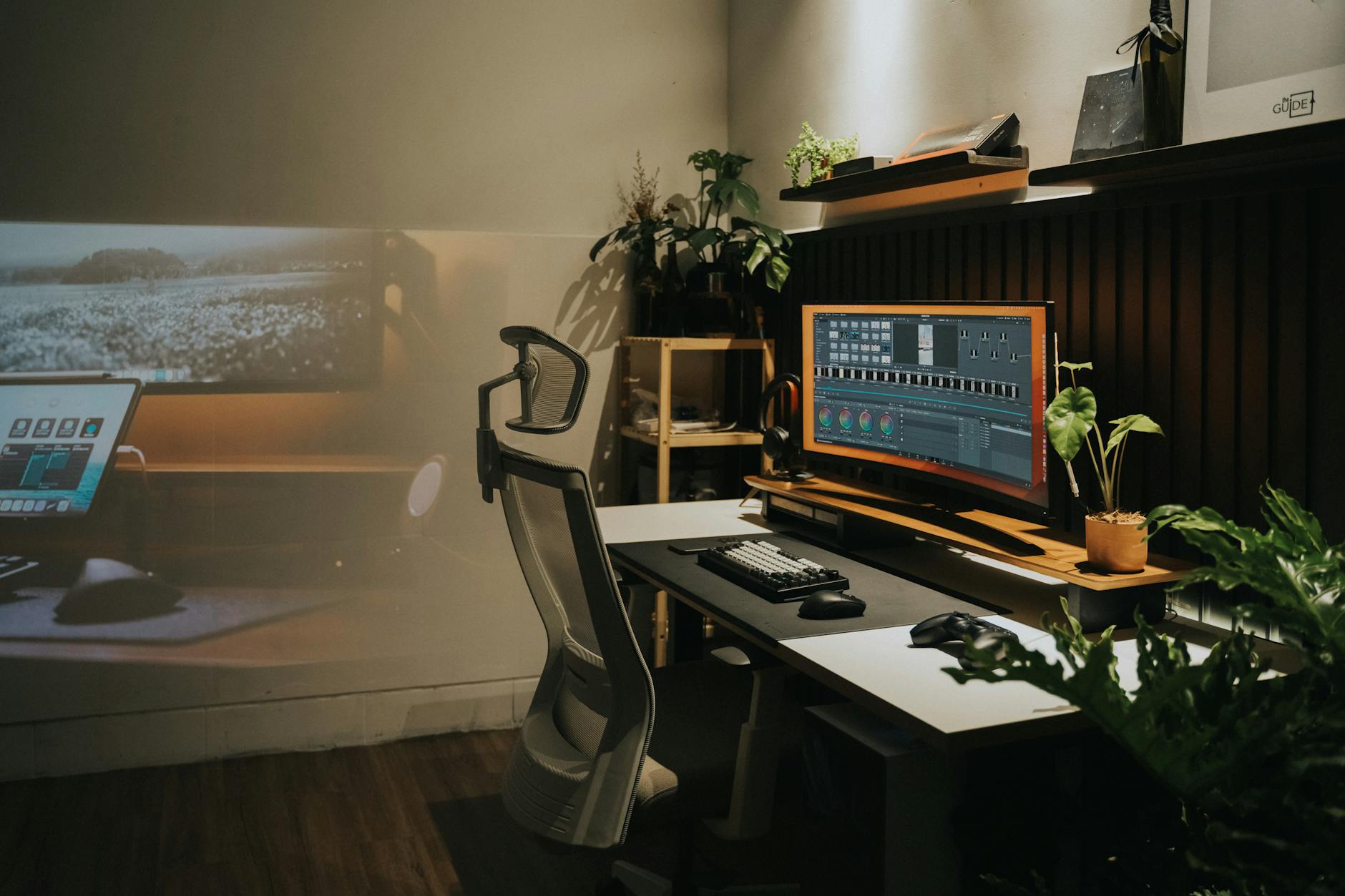
A monitor arm is one of those ergonomic investments that immediately makes you wonder how you lived without it. Unlike a fixed monitor stand, a monitor arm lets you adjust height, depth, and angle with minimal effort. This matters because your ideal monitor position can change depending on whether you’re reading, writing code, doing video calls, or reviewing design work. It also frees up your desk surface entirely, which helps reduce clutter and gives you more flexibility with your overall workspace layout.
When evaluating monitor arms, pay attention to weight capacity (heavier ultrawide monitors need a more robust arm), reach, and whether it clamps to the desk or requires a grommet mount. For dual monitor setups, a dual monitor arm keeps both screens at the same height and makes it much easier to angle them symmetrically — a small thing that eliminates a lot of unnecessary neck rotation over time.
Wrist and Forearm Ergonomics: Preventing the Chain Reaction
Back pain and wrist or forearm discomfort might not seem connected, but they often are. When your hands and wrists are uncomfortable, you tend to shift your body in ways that compensate — adjusting your shoulder position, changing how you’re sitting, tensing muscles through your upper back. Address the hands and you often reduce downstream tension through the whole upper body.
Keyboard and Mouse Placement
Your keyboard and mouse should sit at a height that keeps your wrists in a neutral position — not flexed upward, not angled sharply downward. Your forearms should be roughly parallel to the floor, and your upper arms should hang naturally from your shoulders without spreading outward. Keep your mouse close enough that you’re not reaching for it with an extended arm, which creates shoulder strain over the course of a workday.
The Case for a Wrist Rest
A wrist rest is worth including in your setup, but with a clear understanding of how to use it correctly. A wrist rest is not meant to support your wrists while you’re actively typing. It’s meant to give your wrists a place to rest during pauses. Resting your wrists on a pad while typing actually creates compression on the carpal tunnel and can contribute to nerve issues over time.
Look for a wrist rest with a firm but slightly compliant surface — memory foam that’s too soft lets your wrists sink in and creates improper angles. For mouse use, a wrist rest or mouse pad with wrist support is similarly useful for those rest periods between movements, particularly if you
tend to work long hours with repetitive clicking and scrolling motions.
Mind Your Monitor Height and Distance
Your monitor position has a direct impact on neck strain, which often manifests as upper back pain. The top of your screen should be at or slightly below eye level, and the monitor should sit about an arm’s length away from you. If your monitor is too low, you’ll crane your neck downward all day, compressing the cervical spine and creating tension that radiates down into your shoulders and back.
For laptop users, this is particularly challenging since the screen and keyboard are attached. Consider using a laptop stand with an external keyboard and mouse to achieve proper monitor height. If you use multiple monitors, position them so you’re not constantly rotating your neck to one side — either place them side by side at equal angles or stack them vertically if you primarily reference one whilst working on the other.
Take Movement Breaks Seriously
Even the most perfectly ergonomic setup cannot compensate for prolonged static postures. Your body is designed for movement, and sitting — even with excellent posture — creates sustained compression on the spinal discs. Set a timer to remind yourself to stand, stretch, or walk for at least two minutes every thirty to forty-five minutes.
During these breaks, focus on movements that counteract your sitting position: gentle back extensions, shoulder rolls, and hip flexor stretches are particularly beneficial. These micro-breaks not only reduce back pain but also improve circulation, boost energy levels, and enhance overall productivity.
Conclusion
Back pain doesn’t have to be an inevitable consequence of office work. By implementing these ergonomic principles — proper chair adjustment, correct desk height, mindful accessory use, optimal monitor positioning, and regular movement breaks — you can create a workspace that supports your spine rather than straining it. Remember that ergonomics is personal; what works perfectly for a colleague might need adjustment for your body. Pay attention to your comfort throughout the day and make incremental changes until you find your ideal setup.










dscxis